

You can find any Shopify store’s theme in four ways. Inspect the page source code. Run the store URL through a free theme detector tool. Read the design pattern clues or check which apps the store has installed. Most stores reveal their theme name in the HTML within seconds. No special access is required.
Shopify now powers 26.2% of all ecommerce websites globally (Red Stag Fulfillment / BuiltWith, 2025). Over 5.5 million merchants run active stores on the platform (DemandSage, 2026). That adds up to a lot of stores and even more themes worth researching before you build your own.
Key Takeaways
- The fastest method is the free FastThemes Shopify Theme Detector. Paste a store URL and get the theme name in seconds with no code required.
- Source code inspection works as a manual backup. Press Ctrl+U then search for Shopify.theme in the page source.
- Shopify powers 26.2% of global ecommerce sites (Red Stag / BuiltWith, 2025). The store you admire is likely running a theme you can find.
- If a theme is hidden or heavily customized, design clues still help. Typography, product page layout and sticky cart behavior often reveal the underlying template.
Method 1: Use the FastThemes Shopify Theme Detector (The Fastest Way)
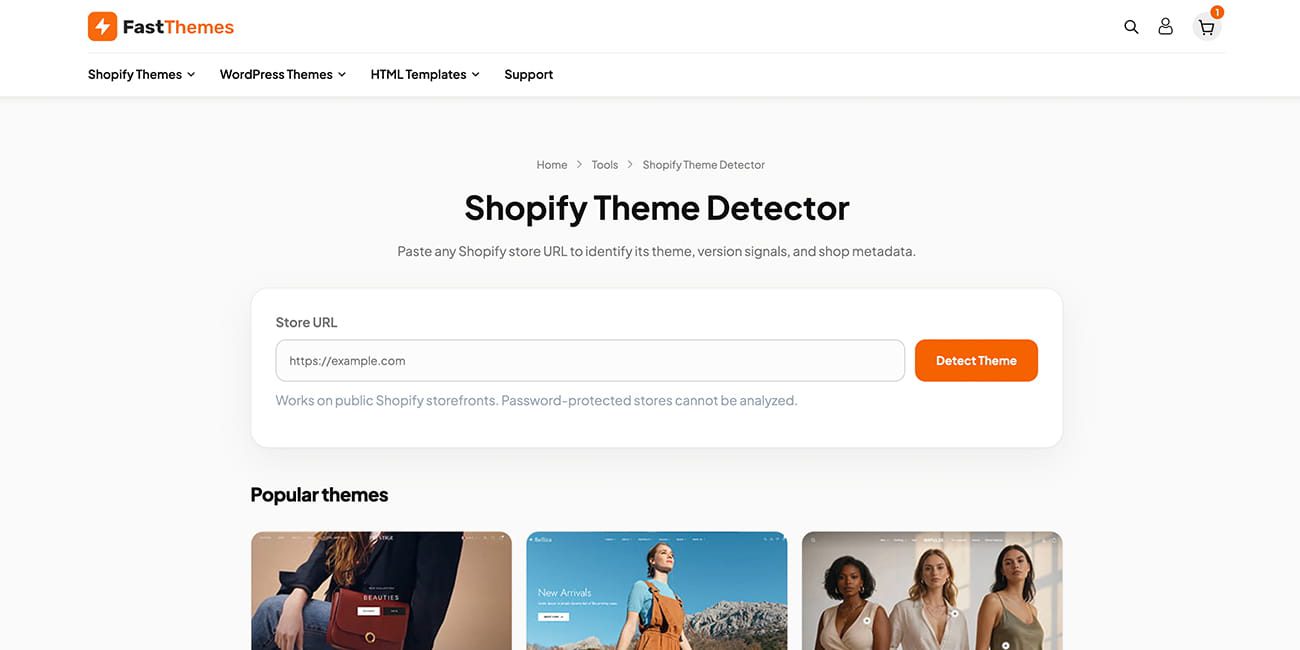
This is the fastest of the four methods and works without touching any code. The FastThemes Shopify Theme Detector reads a store’s public storefront code and returns the theme name in seconds. No login and no installation is needed.
Four steps take you from a store URL to a confirmed theme name:
Step 1: Open Shopify theme detector tool and Paste the store URL. Enter the full URL of any public Shopify store into the detector. The brand’s custom domain and the original myshopify.com address both work.
Step 2: Click Detect Theme. The detector fetches public data from the store and reads the theme information straight from the storefront code. Most results return within a few seconds.
Step 3: Read the results. The results panel shows the theme name, version details and shop metadata together in one view.
Step 4: Use the findings. Search the theme name in the Shopify Theme Store or a third party marketplace to find pricing and documentation.
Here is what the detector reveals:
| Detail | What It Shows |
|---|---|
| Theme name | The active Shopify theme installed on the store |
| Theme version | The installed version number where the developer has exposed it |
| Shop domain | The store’s primary myshopify.com handle |
| Shop metadata | The store name and other data from Shopify’s Liquid global variables |
Worth knowing: the detector reads Shopify’s own window.Shopify JavaScript object and Liquid template data rather than scanning file names alone. This still works when Shopify combines and minifies theme assets in production, a case where manual source inspection often comes up empty.
Password protected stores and stores in maintenance mode cannot be analyzed since their storefront code is not publicly accessible. What if the detector returns no clean match? That usually means the store built from scratch or a developer modified the theme enough to hide its origin. Skip to Method 2.

Method 2: How to Find a Shopify Theme by Inspecting Source Code
Checking the page source is a reliable manual method. Use it when the detector does not return a clean match or you simply want to verify a result yourself. It works on nearly every Shopify store that has not gone out of its way to hide its theme files.
Here’s exactly what to do:
Step 1: Open the store you want to research in your browser.
Step 2: View the page source. Press Ctrl + U on Windows or Linux. On Mac press Cmd + Option + U. A new tab opens showing the raw HTML.
Step 3: Open the search bar. Press Ctrl + F on Windows or Cmd + F on Mac inside the source code tab.
Step 4: Search for the theme reference. Type cdn.shopify.com/s/files/1/ into the search bar. This is the Shopify CDN path that every self hosted theme uses. The file paths next to it usually include the theme name or a recognizable slug.
Step 5: Look for the Shopify.theme object. Search for Shopify.theme in the source code. Many themes expose this directly in a JavaScript block:
Shopify.theme = { name: "Dawn", id: 123456789, role: "main" };That confirms the theme name.
What you’ll actually see in the source looks something like this:
<link rel="stylesheet" href="//cdn.shopify.com/s/files/1/0000/0000/t/5/assets/theme.css?v=..." />The folder structure often contains the theme name. The asset names (dawn.css, debut.css, impulse.css) are the real tell.
What if the source shows nothing? Some enterprise stores or heavily customized builds rename their asset files. In that case, move to Method 3.
Method 3: How to Spot a Shopify Theme from Design Clues Alone
Even without source code or a detector tool, a trained eye can often narrow down the theme from visual patterns alone. Mobile commerce now accounts for 57% of global ecommerce revenue (DemandSage/Statista, 2024). That is why most modern Shopify themes have distinctive mobile first layout signatures.
Here are the signals to look for:
Navigation structure. Drawer style mobile menus that slide in from the left, mega menus on desktop and sticky header behavior are all specific to the theme. The way a menu animates often points to a specific theme family. How it handles dropdown categories adds another clue.
Product page layout. Image arrangement, zoom behavior on hover and the position of the Add to Cart button are all set at the theme level rather than through CSS alone. A sticky Buy button on scroll is another theme level choice. A filmstrip thumbnail row in the product gallery often points to themes like Impulse or Prestige.
Typography pairing. Most premium Shopify themes ship with preconfigured Google Font pairings. A sans serif heading paired with a serif body font is a common default at the theme level. The reverse pairing works too. Even heavily customized stores rarely change it.
Section spacing and grid behavior. How content sections snap together on resize follows the theme’s underlying grid system. This includes whether images and text columns reflow at specific breakpoints.
In practice, the stickiest giveaway is often the quick add overlay on a collection grid. Hover a product image and watch for a button that slides in. Only a handful of themes animate this the same way, which makes it a reliable identifier.
Method 4: How to Identify Theme Specific Apps and Features
Some theme features are really bundled apps or third party integrations that ship with specific premium themes. Identifying them helps confirm which theme a store runs. It can also reveal that a store has upgraded beyond the theme defaults.
Look in the page source for these app signatures:
- Sticky cart or floating cart drawer: often added by a dedicated Shopify app. Look for scripts from cdn.instantreplay.io, ajax-cart.js or similar sources
- Review widget: judge.me, yotpo.com or stamped.io script tags in the source confirm specific review apps
- Trust badges and countdown timers: often loaded as third party script tags with recognizable CDN origins
Why does this matter for theme detection? Premium themes such as Impulse or Prestige bundle specific app integrations out of the box. If you see a set of apps that consistently appear together, it often points to a specific theme that recommends or includes them.
What to Do Once You’ve Found the Theme
Finding the theme name is step one. Here’s how to actually use that information:
If it is a Shopify Theme Store theme, search for it directly in the Shopify Theme Store at themes.shopify.com. You can preview it on sample data, read the feature list and check the price.
If it is a third party theme, search the theme name plus “Shopify theme” to find the developer’s site. Common third party marketplaces include ThemeForest, Envato and TemplateMonster. Compare plans since many use a one time license fee.
If the result is “custom”, that is useful information too. It tells you the store invested in custom development. You do not need to replicate it exactly. Look for a premium theme that covers about 80 percent of the same functionality and customize it from there.
One point worth stating clearly: researching a competitor’s theme is completely legitimate. Copying an entire store design without changes is a different matter. Use inspiration as a starting point rather than a template to copy directly.
Identifying a theme is only the starting point. If the store you researched runs a premium theme that suits your niche, compare it against the Shopify themes built for speed and conversion before committing to a purchase. Matching layout style to your product type matters more than copying a specific theme.

Why Does Identifying a Competitor’s Shopify Theme Give You an Edge?
Knowing what themes successful competitors use can save significant time and money before you design a store from scratch. Visitors form an opinion about a website in just 0.05 seconds. That is the equivalent of 50 milliseconds (Think with Google, 2025). That first impression comes almost entirely from visual design rather than content.
Speed matters too. A page that takes 3 seconds to load instead of 1 second raises the bounce probability to 32 percent (Think with Google, 2025). At 5 seconds that probability jumps to 90 percent. The right theme is not just about looks. It directly affects whether customers stay or leave.
From building Shopify themes across hundreds of stores, the pattern is consistent. Stores that outperform competitors choose a theme based on what works in their specific niche rather than what simply looked good in a preview.
Researching a competitor’s theme gives you a concrete starting point. You already know it works in your market and loads at an acceptable speed. It also converts well enough that a competitor still relies on it.
Frequently Asked Questions
Yes. On most mobile browsers type view-source: before the URL in the address bar. Firefox for Android also supports mobile developer tools. Theme detector tools work on any device too. Just paste the store URL into the tool.
The detector reads Shopify’s own storefront data, so it is highly accurate on unmodified themes and most modified ones too. It will not return a result for password protected stores since their storefront code is not publicly visible. For the rare case it returns no clean match, source code inspection still works as a backup.
Some stores rename asset files or use heavily modified themes that hide the original name. Try a detector tool first. If it returns “custom theme,” fall back on design pattern analysis. Typography, layout behavior and product page structure often narrow down the theme family even without a file name.
Completely legal. Inspecting a website’s publicly visible HTML is standard practice since browsers do the same thing every time a page loads. You are reading public facing code rather than accessing a private system or bypassing security.
Yes. Most Shopify stores reference their theme name in the page’s public HTML. Look in stylesheet file paths or in a Shopify.theme JavaScript object. The free FastThemes Shopify Theme Detector identifies the theme automatically and needs no technical knowledge.
Wrapping Up
Finding a Shopify store’s theme does not take long once you know where to look. The FastThemes Shopify Theme Detector is the fastest starting point since it returns an answer in seconds with no code involved. Source code inspection works as a reliable manual backup when you want to verify a result yourself. For heavily customized stores, design pattern analysis fills in the rest.
The bigger picture is simple. Over 5.5 million merchants now run stores on Shopify (DemandSage, 2026). New themes release every month too. Knowing how to evaluate what successful stores run is a genuine competitive research skill rather than just a technical curiosity.